Live Traffic
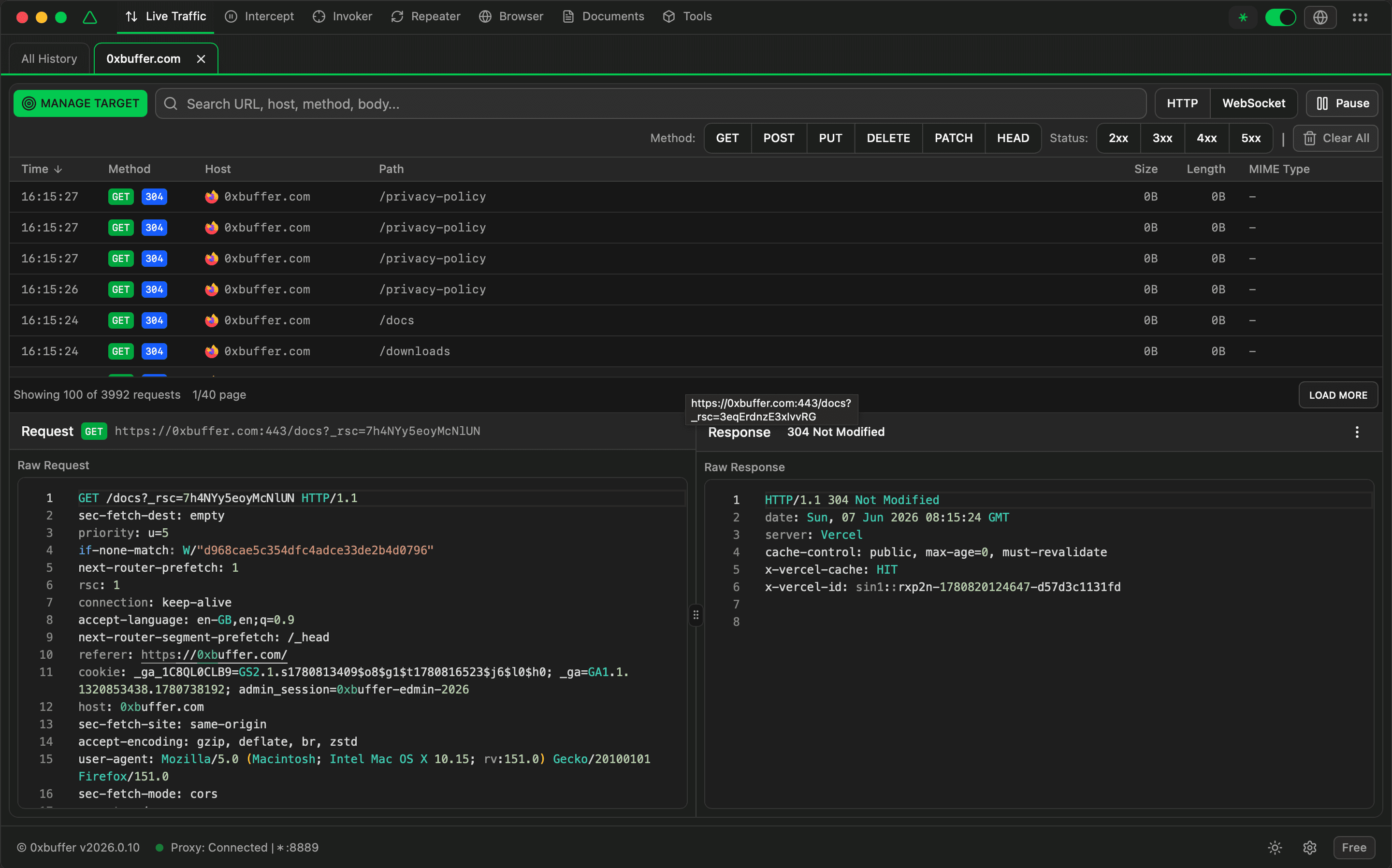
Watch HTTP and WebSocket traffic as it is captured. Use this page to spot interesting requests, narrow noisy sessions, and inspect the full request and response when something needs a closer look.
When to Use It
Open Live Traffic when you want to understand what an application is sending and receiving while you browse, crawl, or test it. It is useful for finding API endpoints, confirming form submissions, checking authentication flows, and comparing normal traffic with suspicious behavior.
Basic Workflow
1. Start capturing traffic, then use the target application normally.
2. Use search, filters, and target tabs to hide unrelated requests.
3. Select a row to inspect the request, response, cookies, and body.
4. Copy details, send the request to another tool, or clear traffic when finished.
HTTP Traffic Table
The traffic table gives you a quick overview of each captured request. Start by scanning the host, path, method, status, and size columns to decide which requests deserve attention.
| Column | Description |
|---|---|
| Time | When the request was captured. Sort by time to replay the session order. |
| Method | The HTTP method and response status, useful for spotting errors or state changes. |
| Host | The domain that received the request. |
| Path | The requested path. Use it to identify pages, API routes, and assets. |
| Size | How large the response was. |
| Length | How much data was sent in the request. |
| MIME Type | The response content type, such as JSON, HTML, image, or script. |
Select a Request
Click any row to open its full details in the inspector. This is the fastest way to review headers, cookies, request data, and response content.
Use Row Actions
Right-click a row for actions such as copying details, sending the request to another workflow, deleting a noisy item, or focusing on a related host.
Filters
Search
Find matching hosts, paths, methods, or body text.
Method
Show only the request methods you care about, such as POST or DELETE.
Status
Focus on successful, redirected, client-error, or server-error responses.
HTTP/WebSocket
Switch between normal HTTP traffic and WebSocket frame traffic.
Pause/Resume
Pause the live list while you inspect current traffic, then resume capture.
Target Tabs
Limit the table to one target or workflow when multiple sessions are active.
Clear All
Remove captured traffic after you finish a session or want a clean start.
HTTP Inspector
After selecting a row, use the inspector to review exactly what was sent and what came back. This is where you confirm parameters, headers, cookies, redirects, error messages, and response bodies.
Use the separate detail window when you want to compare one request against another workflow without losing your place.
WebSocket Traffic
Switch to the WebSocket view when the application uses live updates, chat, collaboration, dashboards, or streaming data. Use direction, length, and payload preview to spot messages worth opening in the payload inspector.
Keep Sessions Manageable
Busy applications can generate a lot of traffic. Use pause when you need time to inspect, filter aggressively while testing a specific flow, and clear captured traffic before starting a new task so old requests do not distract you.
Tip: clear traffic only after saving or copying anything you still need. Clearing is useful for a fresh session, but it removes the captured items from the current workspace.