Intercept
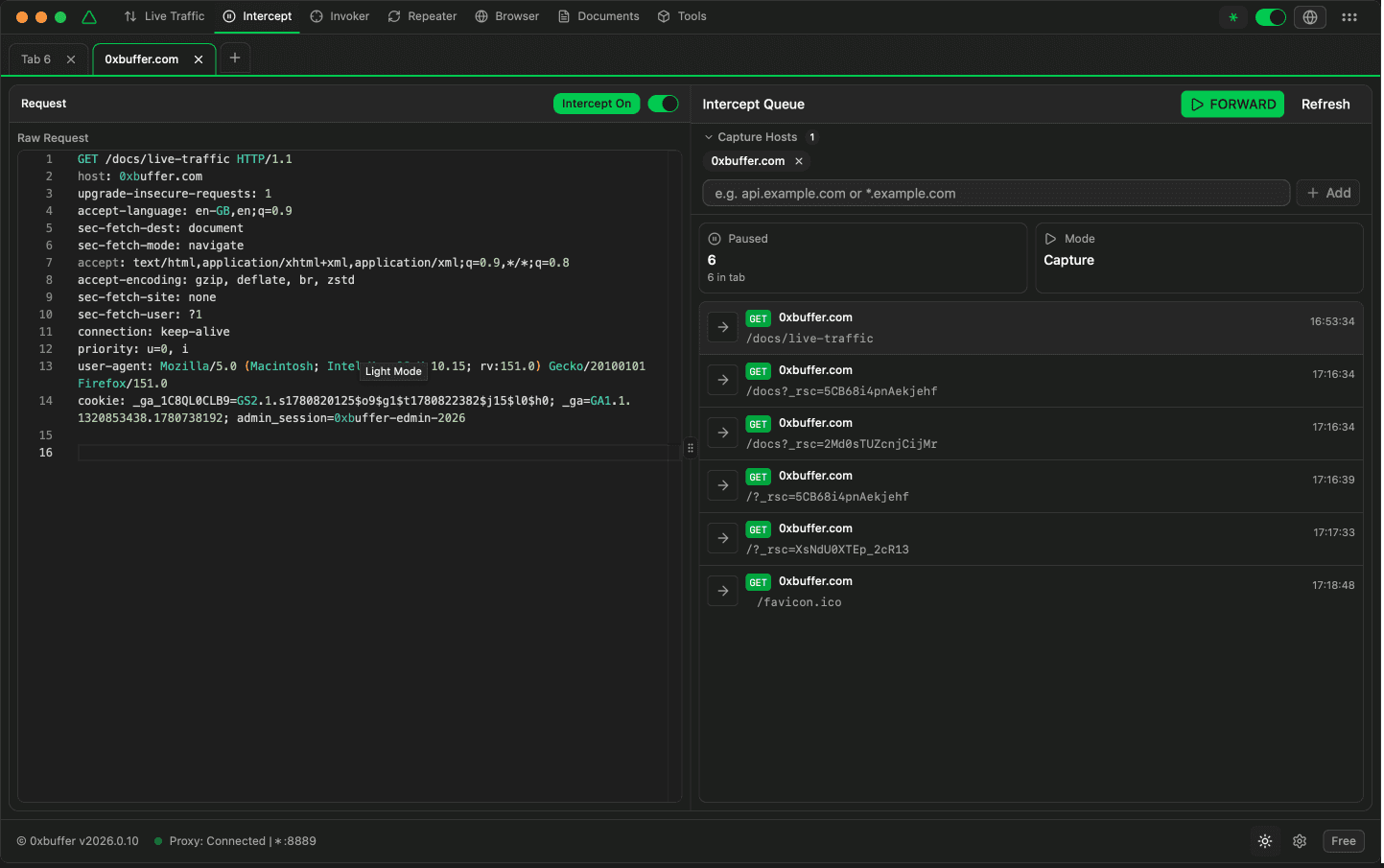
Pause selected HTTP traffic while you test. Inspect the message, change request or response content when needed, then forward it, drop it, or pause the response for another check.
When to Use It
Use Intercept when you want to test how an application handles changed parameters, headers, cookies, methods, or response data. Capture only the hosts you are actively testing so unrelated traffic can continue normally.
Workspace
Message Editor
Review and edit the selected request or response before deciding what to do with it.
Paused Queue
See traffic waiting for your decision, choose a message, and use actions for capture, forward, or drop.
Request Editor
Select a paused item to load it into the editor. Make careful, intentional changes, then forward the message to continue the application flow.
Request or Response
The label tells you whether you are editing traffic going to the server or back to the client.
Edit Raw Message
Change paths, parameters, headers, cookies, body content, or response values before forwarding.
Enable or Disable
Turn intercept mode on when testing, and turn it off when you want traffic to pass normally.
No Selection
Choose an item from the paused queue before editing.
Intercept Queue
The queue lists traffic waiting for your decision. Each row shows the direction, method or status, host, path, and capture time. Click a row to inspect it in the editor.
Paused Count
Shows how much traffic is waiting across your workspace and in the current tab.
Mode Indicator
Shows whether matching traffic will be captured or allowed to pass through without pausing.
Context Menu Actions
Capture this host
Adds the selected host to the active tab so future traffic from that host pauses for review.
Intercept response
Forward the request now, then pause the server response before it reaches the app.
Drop
Discard the paused message when you intentionally want to block it.
Don't capture this host
Stop pausing traffic for that host and let matching items continue normally.
Choose What to Capture
Capture rules keep Intercept focused. Use an exact host when you only want one domain, or a wildcard when the target uses multiple subdomains.
| Pattern | Matches |
|---|---|
| example.com | Capture traffic for example.com. |
| *.example.com | Capture traffic for subdomains such as app.example.com or api.example.com. |
Tab Management
Use tabs to separate different hosts, workflows, or test cases. This helps you avoid mixing login traffic, API testing, and unrelated browsing in the same queue.
Before closing a tab, make sure any paused messages in that tab have been forwarded, dropped, or are no longer needed.
Typical Workflow
- Start the proxy if not already running.
- Enable Intercept using the toggle switch.
- Add capture hosts from the queue or tab settings.
- Browse or use browser automation so matching traffic pauses.
- Inspect paused requests in the queue panel.
- Edit the raw request/response if modification is needed.
- Forward to send, or Drop to discard.
- Use Intercept response when you need to inspect or change the server response.