Browser Automation
Crawl an authorized target to discover pages, forms, APIs, and points of interest. Use the results to decide where to test next, then review notes and activity as the crawl runs.
Authorized Use Only
Only scan targets you own or are authorized to assess. Unauthorized scanning may violate terms of service or applicable laws.
Reading Crawl Results
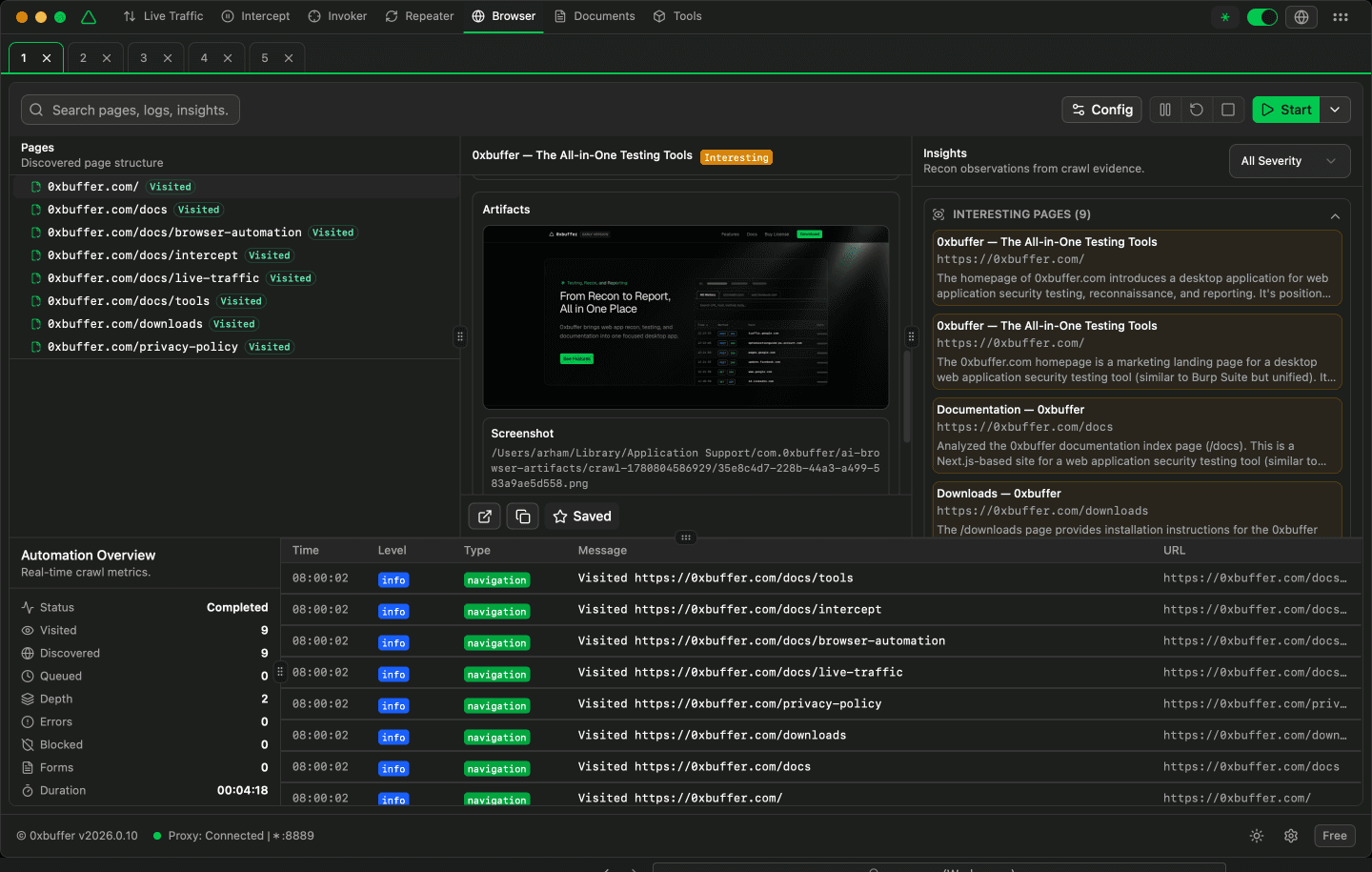
Browser Automation is organized into panels so you can follow progress while reviewing discovered pages. Start with the crawl tree, then open page details and insights for anything that looks important.
| Panel | Purpose |
|---|---|
| Crawl Tree | Shows discovered pages and their status so you can see what was visited, skipped, or still pending. |
| Page Detail | Shows the selected page screenshot, page summary, discovered APIs, forms, and useful metadata. |
| AI Insights | Highlights pages, patterns, or behaviors that may deserve manual review. |
| Crawl Overview | Summarizes pages visited, URLs found, errors, blocked pages, forms, and session time. |
| Activity Log | Lists crawl events so you can understand what happened during the session. |
Crawl Controls
Start (Headless)
Runs the crawl in the background. Use this for routine discovery when you do not need to watch the browser.
Start Visible
Shows the browser while it crawls. Use this when login, consent prompts, or unexpected page behavior may need attention.
Pause
Temporarily stops new crawl activity while keeping the current session available.
Resume
Continues from the paused point after you have reviewed progress or handled a prompt.
Stop
Ends the crawl when you have enough coverage or want to start again with new settings.
Configuration
Configure the crawl before starting. Begin with a narrow scope, confirm the results, then expand depth or page limits when you are confident the target and settings are correct.
Target URL
The page where the crawl should begin. Use only targets you own or are authorized to test.
Max Depth
How many link levels the crawler should follow from the starting page.
Max Pages
The maximum number of pages to visit before stopping.
Delay
How long to wait between page visits. Increase this for sensitive or slower targets.
Timeout
How long to wait for a page before treating it as failed.
Network Settle
Extra wait time for late-loading API calls or dynamic content.
Exclude Paths
Paths to skip, such as logout routes, destructive actions, or out-of-scope areas.
Capture Screenshots
Save a visual record of visited pages for review.
Capture Rendered HTML
Save the page content after it loads so you can inspect dynamic pages later.
AI Insights
AI Insights help you triage crawl results. Treat them as review prompts, not final findings: open the related page, confirm the behavior manually, and mark the insight reviewed when you are done.
Severity Levels
Filter by severity to focus on the most important notes first, then work through lower-priority observations as time allows.
Interesting Pages
Review pages that contain forms, unusual responses, exposed data, login flows, admin paths, or other signals worth testing.
Review Workflow
Mark an insight reviewed after you have checked it. Leave it unreviewed when it still needs manual testing.
Use Evidence
Open the page detail, screenshot, captured APIs, and traffic before turning any note into a report item.
Common Crawl Issues
Few pages found
Increase max depth or max pages, and make sure important links are reachable from the target URL.
Many errors
Increase timeout, slow down the delay, or use Start Visible to see whether the site is blocking automation.
Login required
Use a visible crawl when manual sign-in or multi-factor prompts are part of the authorized workflow.
Too much noise
Add exclude paths for logout, account deletion, large files, and areas outside your testing scope.